
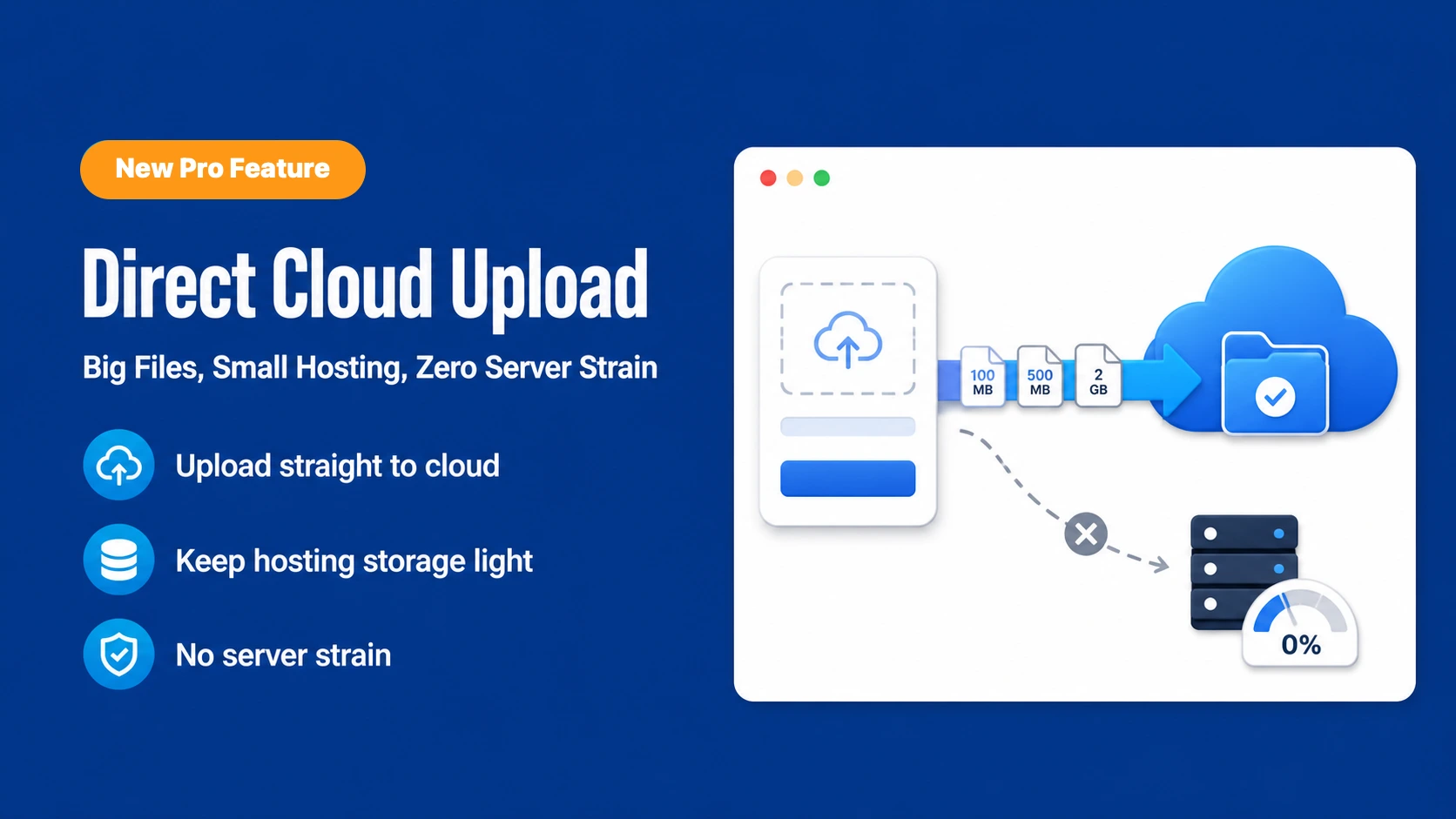
Direct Cloud Upload: Big Files, Small Hosting, Zero Server Strain

Cloud Storage Manager(Pro) – Direct Cloud Upload
Every time someone submits a file through your Fluent Form, that file has to go somewhere. With the standard setup, it lands on your server first. Your server catches it, holds it on disk, and then quietly forwards it to your cloud storage in the background.
TL;DR — Cloud Storage Manager can now send form uploads straight from your visitor’s browser to Google Drive, Dropbox, Amazon S3, Cloudflare R2, or OneDrive — the file never touches your WordPress server. That means a budget hosting plan can accept multi-gigabyte uploads without choking, your server disk stays clean, and big files finish faster. It’s a per-form setting, so you choose exactly where it applies.
For a resume or a signed PDF, that round trip is invisible. But swap that resume for a 2GB video, a folder of raw design files, or a patient’s MRI scan, and the story changes fast. Your server has an upload size limit, a memory ceiling, and an execution timeout. Push a big enough file through it and one of those limits pushes back — usually with an error your visitor doesn’t understand and you didn’t ask for.
Direct Cloud Upload takes your server entirely out of the middle. The Fluent Form sends the file straight to your connected cloud storage. Your server never handles the bytes. It just points the browser in the right direction and steps out of the way.
Here’s why that matters more than it sounds.
So what is it, exactly?
Direct Cloud Upload changes how the file gets to the cloud. Instead of routing every byte through your WordPress server, the browser sends the file straight to your connected cloud storage. Your server never handles the file itself. It just points the browser in the right direction and steps out of the way.
Two routes, side by side:
- Standard upload — your Fluent Form → WordPress server → Cloud storage. Reliable, familiar, perfect for everyday files.
- Direct Cloud Upload — your Fluent Form →
WordPress server→ Cloud storage. Your server is out of the loop entirely.
The difference sounds small. In practice, it’s the difference between “this form works for anything” and “this form works until the file gets too big.”
Stay on the hosting you already have
This is the headline. Accepting large files used to mean paying for the privilege: more memory, more disk, a bigger plan, a higher bill — all so your server could survive being the middleman.
Direct Cloud Upload removes the middleman. Because the file bytes never pass through your server, your hosting doesn’t spend CPU receiving them, doesn’t spend memory holding them, doesn’t spend disk storing them, and doesn’t spend bandwidth forwarding them to the cloud. On a metered or shared plan, that transfer bandwidth is real money and a real bottleneck.
The practical result: a modest, low-tier hosting plan can accept a 2GB upload just as comfortably as an expensive one. You don’t upgrade to handle big files. You just turn this on.
(To be clear about scope: your cloud provider still charges for its own storage, the same as always. What changes is your WordPress hosting cost — and that’s the cost most people are actually trying to control.)
Your server does none of the work
There’s a quieter benefit hiding behind the standard route. When a file lands on your server, it doesn’t always leave right away. The hand-off to the cloud runs in the background, so the file sits on your disk until that job completes — and on a busy site, pending and failed uploads pile up. That’s disk you’re paying for, filled with files that were only ever passing through.
With Direct Cloud Upload, none of that happens. The file never occupies your server — not for an hour, not for a second, not even while it waits in a queue, because there is no queue on your server. Nothing to store, nothing to clean up, nothing to leak.
Signatures come along too. Normally a Fluent Forms signature is captured in the browser and written to your server’s disk as a PNG. With Direct Cloud Upload on, that signature goes straight to your cloud and never touches disk at all — handy for consent forms and agreements where you’d rather the image live in your controlled storage from the first second.
One trip, not two — so big uploads finish faster
Standard upload makes the file travel twice: browser → your server, then server → cloud. That second leg is the slow one, because your host’s uplink is usually far thinner than the ingest infrastructure a service like S3 or Google Drive runs. Direct Cloud Upload makes the file travel once: Fluent Form → Cloud, straight into that fast infrastructure.
Picture a wedding videographer’s client uploading a 1.5GB highlight reel through your intake form. On the standard route, the client waits while the file uploads to your server — and then waits again while your server pushes all 1.5GB up to Drive on its own connection. If the host times out partway through that second push, the whole thing fails and the client starts over. On the direct route, the file streams straight from the Fluent Form into Drive in a single pass. The second leg — the one that used to stall and fail — is simply gone.
It won’t make your visitor’s own internet faster; that’s the floor for any upload. What it removes is the extra transfer and the anxious wait while your server re-sends everything it just received.
Who this is really for
Direct Cloud Upload earns its keep the moment your forms collect anything heavier than a document.
- Medical and dental clinics. Patients upload scans, X-rays, MRIs, and records — large image files, often sensitive. With direct upload, those files skip your public web server entirely and land in your controlled cloud storage, served through private, login-only or temporary signed links rather than sitting on the machine that also runs your website. (Reduced exposure surface — your compliance posture still depends on how you configure your cloud, but the file never parks somewhere it shouldn’t.)
- Creative agencies and studios. Client intake forms that accept raw video, layered PSDs, and multi-gigabyte asset bundles — without a failed upload every time a client sends the good stuff, and without your server buckling during a busy launch week.
- Photographers and videographers. Event galleries and 4K footage delivered through a simple form, on ordinary hosting, without you renting a bigger server just for delivery season.
- Legal and real estate. Signed contracts and full property photo sets in one flow — signatures and big image batches handled the same clean way.
If your visitors send big files, this is the feature that makes those forms stop fighting your hosting.
It’s a per-form setting, not a global switch
You don’t flip this on for the whole site. You turn it on per form, so you decide form by form which route fits.
Video submission or “send us your project files” intake? Turn Direct Cloud Upload on there. Simple contact form with the occasional PDF? Leave it on the standard route. Both run on the same site at the same time. You’re matching the tool to the job, not committing to one behavior everywhere.
Works with every connection
There’s no short list of “supported services.” Direct Cloud Upload works with every provider Cloud Storage Manager supports — Google Drive, Dropbox, Amazon S3, Cloudflare R2, and Microsoft OneDrive. Whichever one a form is connected to, it’s available. The only requirement is an active Pro license.
And nothing about your setup changes: your folder structure, file naming rules, and public-or-private visibility all keep working exactly as they do today. Direct Cloud Upload changes the road the file takes, not the destination.
Turn it on in about ten seconds
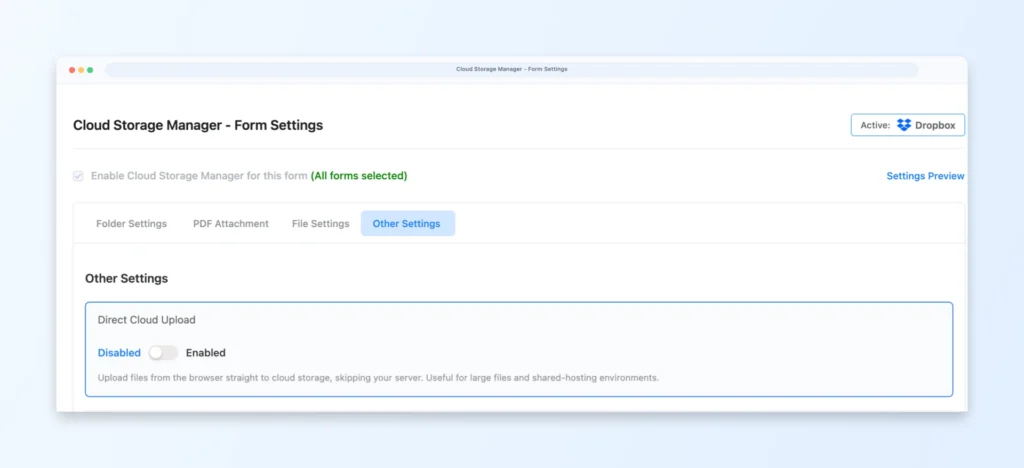
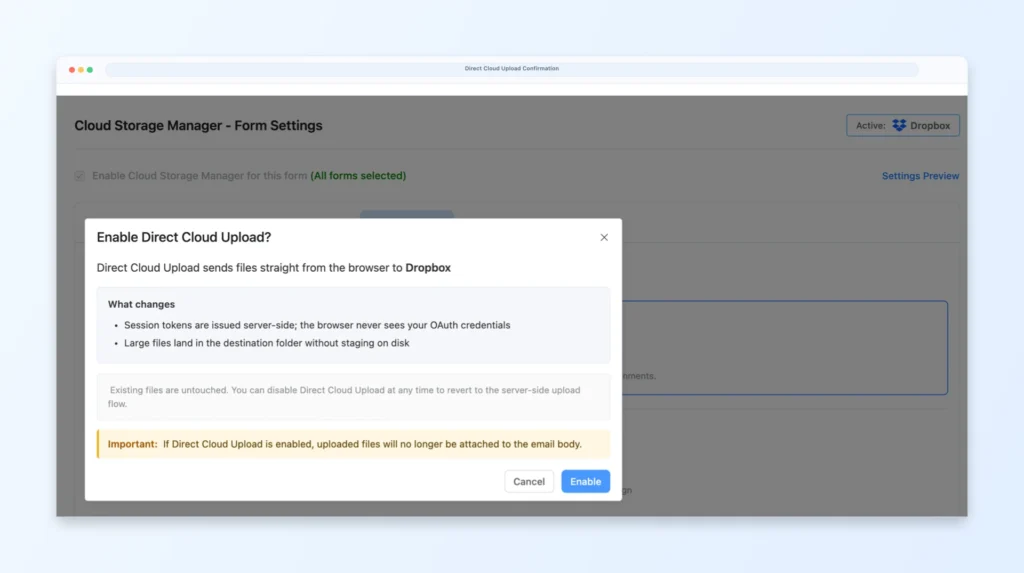
Open any form and head to Settings → Cloud Storage Manager → Other Settings → Direct Cloud Upload. Flip the switch, and a short consent window explains exactly what happens for your provider — a simple confirmation for Drive, Dropbox, and OneDrive, or the exact CORS rule that gets added to your bucket for S3 and R2. Confirm it, and you’re live. There’s no separate save step.
Try it on a single form first. Submit a big test file. Watch it land in your cloud without ever touching your server — and without your hosting plan noticing a thing.
That’s Direct Cloud Upload: bigger files, smaller hosting, the same destination by a shorter road.
Get Pro Now: Cloud Storage Manager for Fluent Forms
Before you turn it on
Two things worth knowing up front.
Email attachments won’t work on a direct-upload form. This is the same trade-off covered above, and it’s worth repeating here because it’s the one that surprises people. Attaching an uploaded file to a notification email requires a copy of that file on your server and with Direct Cloud Upload, there isn’t one. Your notifications carry a link to the file in your cloud instead. Static attachments you’ve added manually in the Fluent Forms notification settings are unaffected; those already live on your server and keep working exactly as they do now.
Direct Cloud Upload doesn’t run inside Conversational Forms. Conversational Forms render through their own flow, and like several other Fluent Forms components, this one isn’t part of it. Uploads on those forms take the standard route instead. If you have a heavy-file workflow that needs the direct route, build it on a regular form.
What’s in the new version 1.2.5 (Free and Pro)
New:
- Direct browser-to-cloud upload, straight from the form (Pro)
- Folder structure by upload field’s Element Label / Admin Label (Pro)
- Custom recipients for upload-failure email alerts
- Upload Issues panel — see each failed upload’s cause, fix, and retry
Improved:
- Faster standard uploads
- More reliable background upload handling
- Automatic token refresh — no failed uploads on expired connections
What we improved in the free version this month
The free version is the foundation everything else sits on, so our engineering team spent this cycle making it more dependable.
Uploading to the cloud has always been an asynchronous process. The file lands on your server, and a scheduled background job picks it up a moment later and pushes it to your storage. That works — but it depends on WordPress scheduling behaving, and on a lot of sites it doesn’t. Some hosts disable WP-Cron outright. Others run it late, or skip a cycle under load. When that happens, a finished upload sits in the queue waiting on a scheduler that isn’t coming.
So we added a second path. If the scheduled job hasn’t run, the pending upload gets picked up and completed after fluent forms submission fully completed, without waiting for the next cycle to come around. Same destination, fewer reasons for it to stall on the way there.
This ships in free version 1.2.5, alongside the Pro release.



Leave a Reply
You must be logged in to post a comment.